
Upload-Post + n8n Integration
Automate your social media publishing by connecting Upload-Post with n8n. Start by setting up your Upload-Post users and API key, then choose between our official n8n node or manual HTTP configuration.
ต้องการความช่วยเหลือในการสร้างการทำงานของคุณ? We work with trusted partners who can set up your n8n automation or build a custom project for you.
Prerequisite: Setup in Upload-Post
Before configuring n8n, you must set up users and generate an API key within your Upload-Post account. These will be used to authenticate and direct your automated posts.
จัดการผู้ใช้ & เชื่อมต่อบัญชีโซเชียล
Each post is associated with a specific user in Upload-Post. This user must have the target social media platforms connected to their profile.
- Navigate to the จัดการผู้ใช้ page in your Upload-Post dashboard.
- เพิ่มผู้ใช้ใหม่หรือเลือกผู้ใช้ที่มีอยู่
- สำหรับผู้ใช้ที่เลือก, เชื่อมต่อบัญชีโซเชียลมีเดียทั้งหมด (เช่น, TikTok, Instagram, Facebook) ที่คุณตั้งใจจะเผยแพร่เนื้อหาผ่าน n8n.
- Take note of the รหัสระบุผู้ใช้ (this is typically the username or a unique ID associated with the user in Upload-Post). You will need this for your n8n workflows.
สำคัญ: บัญชีโซเชียลต้องเชื่อมต่อกับ *ผู้ใช้เฉพาะ* ที่คุณตั้งใจจะใช้ในการทำงานอัตโนมัติ ไม่ใช่แค่เชื่อมต่อทั่วไปกับบัญชี Upload-Post ของคุณ
สร้าง API Key
The API key authenticates your requests to the Upload-Post API.
- Go to the คีย์ API page in your Upload-Post API keys section.
- สร้าง API key ใหม่หากคุณยังไม่มี
- คัดลอกคีย์ API นี้อย่างปลอดภัย คุณจะใช้มันในการตั้งค่าข้อมูลประจำตัว n8n ของคุณ
หมายเหตุด้านความปลอดภัย: Treat your API key like a password. Do not share it publicly or embed it directly in shared workflows. Use n8n\'s credential management system.
Once you have your รหัสระบุผู้ใช้ and คีย์ API from Upload-Post, you are ready to configure n8n.
Recommended: Using the Official Upload-Post n8n Node
ความพร้อมใช้งานของ Node:
The n8n-nodes-upload-post node is now included by default in updated versions of n8n for both self-hosted (on-premise) n8n instances and n8n cloud instances. No manual installation is required - just ensure you have the latest version of n8n.
The easiest way to integrate is using our official node: n8n-nodes-upload-post. This node is included by default in updated versions of n8n and streamlines setup with dedicated operations for both cloud and self-hosted n8n instances.
1. Access the Upload-Post Node
โหนด Upload-Post จะรวมอยู่โดยค่าเริ่มต้นในเวอร์ชันที่อัปเดตของ n8n:
- ตรวจสอบให้แน่ใจว่าคุณได้ติดตั้งเวอร์ชันล่าสุดของ n8n
- เปิดโปรแกรมแก้ไขเวิร์กโฟลว์ n8n ของคุณ
- ค้นหา "Upload Post" ในห้องสมุดโหนด
- โหนดควรจะสามารถใช้งานได้โดยไม่ต้องติดตั้งเพิ่มเติม
If you don\'t see the node, please update your n8n instance to the latest version.
2. Configure Upload-Post API Credentials in n8n
You\'ll use the API Key generated from your ส่วน API สำหรับอัปโหลดโพสต์ (as described in the "Prerequisite" section above).
- In n8n, go to ข้อมูลรับรอง > ใหม่.
- Search for API สำหรับอัปโหลดโพสต์ และเลือก
- Assign a memorable ชื่อข้อมูลรับรอง (e.g., "My Upload-Post API Key").
- วาง Upload Post ของคุณ คีย์ API ในช่องที่กำหนด
- Click บันทึก.
สิ่งนี้จะเก็บ API key ของคุณอย่างปลอดภัยเพื่อใช้โดยโหนด Upload-Post
3. Utilize Node Operations in Your เวิร์กโฟลว์
The node provides dedicated operations. For each, you will need to provide the รหัสระบุผู้ใช้ (from the user you set up in จัดการผู้ใช้ Upload-Post) to specify which user\'s social accounts to use.
อัปโหลดภาพถ่าย
อัปโหลดหนึ่งหรือหลายภาพ ยอมรับไฟล์หรือ URL
จำเป็น: User Identifier, Platform(s), Photos. ตัวเลือก: Title, Caption. Platform-specific fields available.
อัปโหลดวิดีโอ
อัปโหลดวิดีโอเดียว ยอมรับไฟล์หรือ URL
จำเป็น: User Identifier, Platform(s), Video. ตัวเลือก: Title. Platform-specific fields available.
อัปโหลดข้อความ
อัปโหลดโพสต์ที่เป็นข้อความ
จำเป็น: User Identifier, Platform(s), Title/Content. Platform-specific fields available.
Refer to the node\'s help documentation within n8n or the npm package page for detailed parameter lists. The เอกสาร API สำหรับอัปโหลดโพสต์ provides full details on underlying API capabilities.
Using this dedicated n8n node is the recommended approach for both cloud and self-hosted n8n users.
Manual Configuration (Alternative using HTTP Request Node)
If the official node is not suitable for your specific needs, you can configure the integration manually using n8n\'s generic HTTP Request node. This requires careful setup of API parameters.
ข้อกำหนดเบื้องต้น: ผู้ใช้ Upload-Post & API Key
ตรวจสอบให้แน่ใจว่าคุณได้ทำตามขั้นตอน "ข้อกำหนดเบื้องต้น: การตั้งค่าใน Upload-Post" ที่อธิบายไว้ที่ต้นคู่มือนี้ คุณจะต้องมี:
- Your คีย์ API from กุญแจ API ของ Upload-Post.
- The รหัสระบุผู้ใช้ (e.g., username) for the user whose social accounts you\'ll be posting to, from จัดการผู้ใช้ Upload-Post.
เข้าใจ Endpoint API ของ Upload-Post และการทำคำขอ
Upload-Post offers distinct API endpoints for uploading different types of content. All requests must include an การอนุญาต header with your API Key and generally require a user field (your User Identifier from Upload-Post) and platform[] to specify the target social media.
1. Video Upload Endpoint
จุดสิ้นสุด URL: https://api.upload-post.com/api/upload
Use this endpoint for uploading single video files. Key parameters include video (file), title, user, and platform[].
curl \
  -H 'การอนุญาต: Apikey YOUR_API_KEY_HERE' \
  -F 'video=@/path/to/your/video.mp4' \
  -F 'title="ชื่อวิดีโอของคุณ"' \
  -F 'user="YOUR_USER_IDENTIFIER"' \
  -F 'platform[]=tiktok' \
  -X POST https://api.upload-post.com/api/upload
2. Photo Upload Endpoint
จุดสิ้นสุด URL: https://api.upload-post.com/api/upload_photos
For uploading one or more photos (e.g., for carousels/slideshows). Use photos[] for each image file. Also include user, platform[], title, and optionally description.
curl \
  -H 'การอนุญาต: Apikey YOUR_API_KEY_HERE' \
  -F 'photos[]=@/path/to/your/image1.jpg' \
  -F 'photos[]=@/path/to/your/image2.webp' \
  -F 'user="YOUR_USER_IDENTIFIER"' \
  -F 'platform[]=instagram' \
  -F 'title="My Awesome Photo Album"' \
  -F 'description="Check out these cool photos!"' \
  -X POST https://api.upload-post.com/api/upload_photos
3. Text Upload Endpoint
จุดสิ้นสุด URL: https://api.upload-post.com/api/upload_text
For publishing text-based posts. Requires user, platform[], and title (as the main content). caption can be used for internal tracking or specific platform needs.
curl \
  -H 'การอนุญาต: Apikey YOUR_API_KEY_HERE' \
  -F 'user="YOUR_USER_IDENTIFIER"' \
  -F 'platform[]=x' \
  -F 'title="This is my amazing tweet content!"' \
  -F 'caption="Optional: A caption for stats & tracking."' \
  -X POST https://api.upload-post.com/api/upload_text
หมายเหตุสำคัญสำหรับการตั้งค่าด้วยตนเอง:
- Replace
YOUR_API_KEY_HEREwith your actual API key from the Upload-Post Api section. - Replace
YOUR_USER_IDENTIFIERด้วยรหัสระบุผู้ใช้เฉพาะ (เช่น ชื่อผู้ใช้) จาก Upload-Post ที่มีบัญชีโซเชียลมีเดียเป้าหมายเชื่อมต่ออยู่ - แนะนำให้เก็บ API key ของคุณในตัวจัดการข้อมูลประจำตัวของ n8n และอ้างอิงในโหนด HTTP Request แทนการเขียนแบบ hardcoding.
- The
@/path/to/your/filesyntax in cURL indicates a file upload. In n8n, you would use expressions to reference binary data from previous nodes (e.g.,={{ $binary.data }}).
เคล็ดลับมือโปร: ทดสอบ & สร้าง cURL จากแดชบอร์ด Upload-Post
Before configuring n8n, test your uploads directly from the แดชบอร์ด Upload-Post. Once you\'ve successfully uploaded content, the dashboard generates a perfect cURL command that you can copy and import directly into your n8n HTTP Request node.
การทำงาน:
- Go to แดชบอร์ด Upload-Post
- อัปโหลดเนื้อหาของคุณ (วิดีโอ, รูปภาพ หรือข้อความ) ไปยังแพลตฟอร์มที่คุณต้องการ
- หลังจากการอัปโหลดสำเร็จ ให้คัดลอกคำสั่ง cURL ที่สร้างขึ้น
- นำเข้า cURL นี้โดยตรงไปยังโหนด HTTP Request ของคุณใน n8n โดยใช้ฟีเจอร์ "นำเข้าจาก cURL"
กำหนดค่าโหนดคำขอ HTTP ของ n8n (เนื้อหา)
Key fields for the HTTP Request node\'s body (typically multipart/form-data):
| ฟิลด์ | ค่า / คำอธิบาย | จำเป็น |
|---|---|---|
| user | Your รหัสระบุผู้ใช้ from Upload-Post (e.g., username). | จำเป็น |
| platform[] | แพลตฟอร์ม identifier (e.g., tiktok, instagram). Repeat for multiple platforms. | จำเป็น |
| title | โพสต์ชื่อหรือเนื้อหา (แตกต่างกันไปตามแพลตฟอร์มและประเภทโพสต์) | ตัวเลือก/แตกต่างกัน |
| video | ข้อมูลไฟล์ไบนารีสำหรับการอัปโหลดวิดีโอ. | หากอัปโหลดวิดีโอ |
| image[] | ข้อมูลไฟล์ไบนารีสำหรับการอัปโหลดภาพ. ทำซ้ำสำหรับหลายภาพในคารูเซล/สไลด์โชว์. | หากอัปโหลดภาพ |
- Set HTTP Request node วิธีการ to POST.
- Set URL to
https://api.upload-post.com/api/upload. - Add the
การอนุญาตheader with your API key. - For ประเภทเนื้อหาหลัก, select
multipart/form-data. - เพิ่มฟิลด์ในบอดี้เช่น
user,platform[],title, and eithervideoorimage[]with appropriate values (e.g., using n8n expressions like={{ $binary.data }}for file data).
For detailed examples and platform-specific parameters, refer to the เอกสาร API สำหรับอัปโหลดโพสต์.
ตัวอย่าง: JSON โหนด HTTP (วิดีโอไปยัง TikTok)
This is a conceptual JSON representation for an n8n HTTP Request node configured to upload a video to TikTok. You would build this using the n8n interface.
{
  "parameters": {
    "method": "POST",
    "url": "https://api.upload-post.com/api/upload",
    "authentication": "headerAuth",
    "sendHeaders": true,
    "headerParameters": {
      "parameters": [
        {
          "name": "การอนุญาต",
          "value": "Apikey YOUR_API_KEY_HERE"
        }
      ]
    },
    "sendBody": true,
    "bodyContentType": "multipart-form-data",
    "bodyParameters": {
      "parameters": [
        {
          "name": "user",
          "value": "YOUR_UPLOAD_POST_USER_IDENTIFIER"
        },
        {
          "name": "title",
          "value": "= $input.item.title ? $input.item.title : 'วิดีโอที่ยอดเยี่ยมของฉัน'"
        },
        {
          "name": "platform[]",
          "value": "tiktok"
        }
      ]
    },
    "formBinaryData": {
      "video": "={{ $binary.data }}"
    },
    "options": {}
  },
  "name": "อัปโหลดวิดีโอไปยัง TikTok (แบบแมนนวล)",
  "type": "n8n-nodes-base.httpRequest"
}
Crucial: API Keys & User Identifiers
- ความปลอดภัยของคีย์ API: Always use n8n\'s credential management for your Upload-Post API Key. Avoid hardcoding it.
- รหัสระบุผู้ใช้: ตรวจสอบให้แน่ใจว่าฟิลด์
userในเนื้อหาคำขอของคุณอ้างอิงถึงรหัสระบุผู้ใช้จาก Upload-Post ที่มีบัญชีโซเชียลที่เชื่อมต่ออยู่ที่คุณต้องการใช้อย่างถูกต้อง - เมื่อแชร์เวิร์กโฟลว์ ให้ส่งออกโดยไม่มีข้อมูลรับรองที่ละเอียดอ่อน
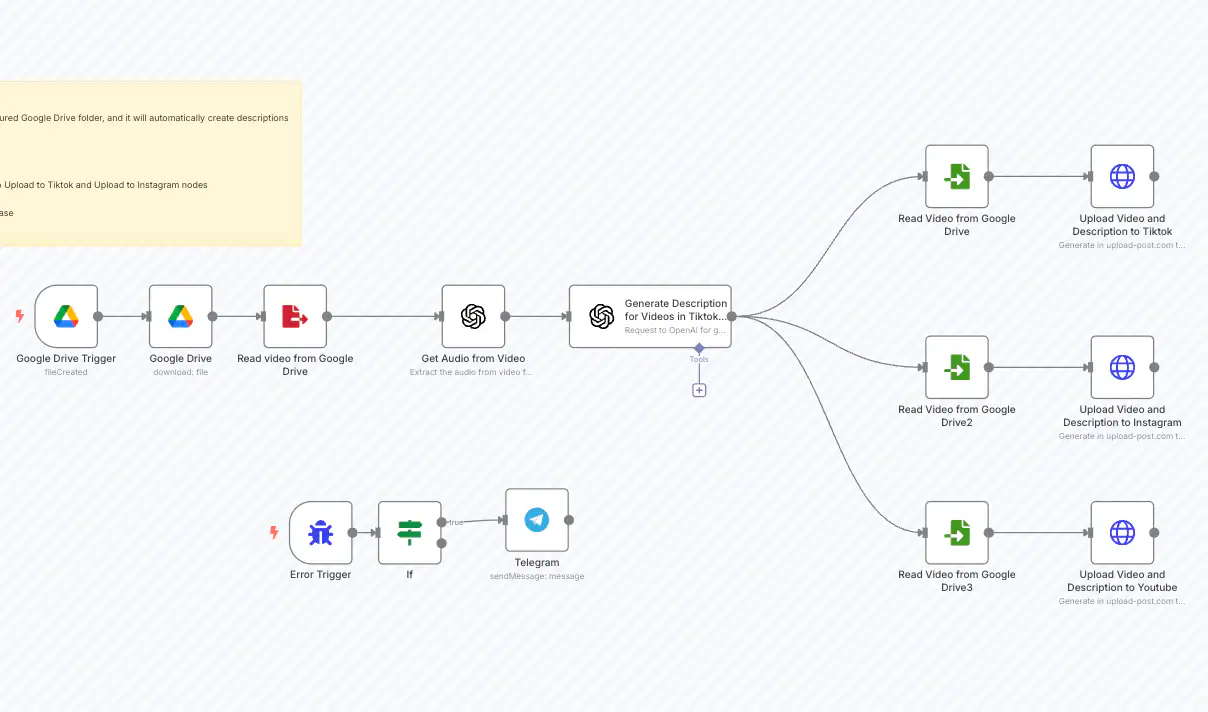
ตัวอย่างการทำงาน: ผู้เผยแพร่โซเชียลมีเดียที่ขับเคลื่อนด้วย AI
What It Does
- ติดตามโฟลเดอร์ Google Drive สำหรับวิดีโอใหม่
- ถอดเสียงวิดีโอโดยใช้ OpenAI
- สร้างคำอธิบายโซเชียลมีเดียที่น่าสนใจ
- การอัปโหลดไปยัง Instagram, TikTok & YouTube
- ส่งการแจ้งเตือนเมื่อเสร็จสิ้นหรือเกิดข้อผิดพลาด
Workflow Architecture
Implementation Steps
- ตัวกระตุ้น Google Drive: Configure to monitor a specific folder for new videos
- การถอดเสียง OpenAI: Set up to extract audio and convert to text
- เครื่องสร้างคำอธิบาย OpenAI: Use a custom prompt to create engaging descriptions based on transcription
- คำขอ HTTP ของ Upload-Post: Configure as described in previous steps with multi-platform selection
- การจัดการข้อผิดพลาด: Add Telegram notification for success/failure alerts
ตัวอย่างการทำงาน: ผู้เผยแพร่ภาพคารูเซลสำหรับ Instagram & TikTok
What It Does
- อัตโนมัติการอัปโหลดภาพหลายภาพเป็นคารูเซลไปยัง Instagram
- อัตโนมัติการอัปโหลดภาพหลายภาพเป็นสไลด์โชว์ไปยัง TikTok
- ทำให้การจัดการเนื้อหาภาพเป็นไปอย่างราบรื่นข้ามแพลตฟอร์ม
- จัดการการอัปโหลดภาพหลายภาพด้วยการกระตุ้นเพียงครั้งเดียว
Workflow Steps
- ทริกเกอร์: Start the workflow with your selected images (e.g., from a schedule, webhook, or manual execution).
- การประมวลผลภาพ: The workflow prepares images for platform-specific formats (consider nodes for resizing or formatting if needed).
- คำขอ HTTP ของ Upload-Post: Configure an HTTP Request node (similar to the video upload) but adjust for image uploads.
- ใช้ฟิลด์ `image[]` แทน `video`.
- ส่งข้อมูลไบนารีสำหรับแต่ละภาพไปยังฟิลด์ `image[]`
- ตั้งค่า `platform[]` เป็น `instagram` และ/หรือ `tiktok`
- การปรับแต่งแพลตฟอร์ม: Upload-Post handles formatting according to each platform\'s requirements (carousel for Instagram, slideshow for TikTok).
- (Optional) Notifications: Add nodes to notify upon success or failure.
Refer to the n8n template for specific node configurations, especially for handling multiple image inputs.