
Upload-Post + n8n Integration
Automate your social media publishing by connecting Upload-Post with n8n. Start by setting up your Upload-Post users and API key, then choose between our official n8n node or manual HTTP configuration.
क्या आपको अपने वर्कफ़्लो बनाने में मदद चाहिए? We work with trusted partners who can set up your n8n automation or build a custom project for you.
Prerequisite: Setup in Upload-Post
Before configuring n8n, you must set up users and generate an API key within your Upload-Post account. These will be used to authenticate and direct your automated posts.
उपयोगकर्ताओं का प्रबंधन करें और सामाजिक खातों को कनेक्ट करें
Each post is associated with a specific user in Upload-Post. This user must have the target social media platforms connected to their profile.
- Navigate to the उपयोगकर्ताओं का प्रबंधन करें page in your Upload-Post dashboard.
- एक नया उपयोगकर्ता जोड़ें या मौजूदा उपयोगकर्ता का चयन करें।
- चुने गए उपयोगकर्ता के लिए, सभी सोशल मीडिया खातों (जैसे, TikTok, Instagram, Facebook) को कनेक्ट करें जिन पर आप n8n के माध्यम से सामग्री प्रकाशित करने का इरादा रखते हैं।
- Take note of the उपयोगकर्ता पहचानकर्ता (this is typically the username or a unique ID associated with the user in Upload-Post). You will need this for your n8n workflows.
महत्वपूर्ण: सोशल अकाउंट्स को आपके Upload-Post अकाउंट में सामान्य रूप से नहीं, बल्कि उस *विशिष्ट उपयोगकर्ता* से जोड़ा जाना चाहिए जिसे आप अपने ऑटोमेशन में उपयोग करना चाहते हैं।
API कुंजी उत्पन्न करें
The API key authenticates your requests to the Upload-Post API.
- Go to the API कुंजियाँ page in your Upload-Post API keys section.
- यदि आपके पास पहले से एक API कुंजी नहीं है, तो एक नई उत्पन्न करें।
- इस API कुंजी को सुरक्षित रूप से कॉपी करें। आप इसे अपने n8n क्रेडेंशियल सेटअप में उपयोग करेंगे।
सुरक्षा नोट: Treat your API key like a password. Do not share it publicly or embed it directly in shared workflows. Use n8n\'s credential management system.
Once you have your उपयोगकर्ता पहचानकर्ता and API कुंजी from Upload-Post, you are ready to configure n8n.
Recommended: Using the Official Upload-Post n8n Node
नोड उपलब्धता:
The n8n-nodes-upload-post node is now included by default in updated versions of n8n for both self-hosted (on-premise) n8n instances and n8n cloud instances. No manual installation is required - just ensure you have the latest version of n8n.
The easiest way to integrate is using our official node: n8n-nodes-upload-post. This node is included by default in updated versions of n8n and streamlines setup with dedicated operations for both cloud and self-hosted n8n instances.
1. Access the Upload-Post Node
Upload-Post नोड n8n के अपडेटेड संस्करणों में डिफ़ॉल्ट रूप से शामिल है:
- सुनिश्चित करें कि आपके पास n8n का नवीनतम संस्करण स्थापित है।
- अपना n8n कार्यप्रवाह संपादक खोलें।
- नोड लाइब्रेरी में "Upload Post" के लिए खोजें।
- नोड बिना किसी अतिरिक्त स्थापना के उपलब्ध होना चाहिए।
If you don\'t see the node, please update your n8n instance to the latest version.
2. Configure Upload-Post API Credentials in n8n
You\'ll use the API Key generated from your अपलोड पोस्ट एपीआई अनुभाग (as described in the "Prerequisite" section above).
- In n8n, go to क्रेडेंशियल्स > नया.
- Search for अपलोड पोस्ट एपीआई और इसे चुनें।
- Assign a memorable क्रेडेंशियल नाम (e.g., "My Upload-Post API Key").
- अपना Upload Post API कुंजी निर्दिष्ट फ़ील्ड में।
- Click सहेजें.
यह Upload-Post नोड द्वारा उपयोग के लिए आपकी API कुंजी को सुरक्षित रूप से स्टोर करता है।
3. Utilize Node Operations in Your वर्कफ़्लो
The node provides dedicated operations. For each, you will need to provide the उपयोगकर्ता पहचानकर्ता (from the user you set up in Upload-Post उपयोगकर्ताओं का प्रबंधन करें) to specify which user\'s social accounts to use.
फोटो(ओं) को अपलोड करें
एक या अधिक फ़ोटो अपलोड करें। फ़ाइलें या यूआरएल स्वीकार करता है।
आवश्यक: User Identifier, Platform(s), Photos. वैकल्पिक: Title, Caption. Platform-specific fields available.
वीडियो अपलोड करें
एकल वीडियो अपलोड करें। फ़ाइल या यूआरएल स्वीकार करता है।
आवश्यक: User Identifier, Platform(s), Video. वैकल्पिक: Title. Platform-specific fields available.
टेक्स्ट अपलोड करें
एक टेक्स्ट-आधारित पोस्ट अपलोड करें।
आवश्यक: User Identifier, Platform(s), Title/Content. Platform-specific fields available.
Refer to the node\'s help documentation within n8n or the npm package page for detailed parameter lists. The अपलोड पोस्ट एपीआई दस्तावेज़ provides full details on underlying API capabilities.
Using this dedicated n8n node is the recommended approach for both cloud and self-hosted n8n users.
Manual Configuration (Alternative using HTTP Request Node)
If the official node is not suitable for your specific needs, you can configure the integration manually using n8n\'s generic HTTP Request node. This requires careful setup of API parameters.
पूर्वापेक्षा: Upload-Post उपयोगकर्ता और API कुंजी
सुनिश्चित करें कि आपने इस मार्गदर्शिका की शुरुआत में वर्णित "पूर्वापेक्षा: Upload-Post में सेटअप" चरणों को पूरा कर लिया है। आपको आवश्यकता होगी:
- Your API कुंजी from Upload-Post API कुंजी.
- The उपयोगकर्ता पहचानकर्ता (e.g., username) for the user whose social accounts you\'ll be posting to, from Upload-Post उपयोगकर्ताओं का प्रबंधन करें.
Upload-Post API एंडपॉइंट्स को समझना और अनुरोध करना
Upload-Post offers distinct API endpoints for uploading different types of content. All requests must include an अधिकार header with your API Key and generally require a user field (your User Identifier from Upload-Post) and platform[] to specify the target social media.
1. Video Upload Endpoint
एंडपॉइंट URL: https://api.upload-post.com/api/upload
Use this endpoint for uploading single video files. Key parameters include video (file), title, user, and platform[].
curl \
  -H 'अधिकार: Apikey YOUR_API_KEY_HERE' \
  -F 'video=@/path/to/your/video.mp4' \
  -F 'title="आपका वीडियो शीर्षक"' \
  -F 'user="YOUR_USER_IDENTIFIER"' \
  -F 'platform[]=tiktok' \
  -X POST https://api.upload-post.com/api/upload
2. Photo Upload Endpoint
एंडपॉइंट URL: https://api.upload-post.com/api/upload_photos
For uploading one or more photos (e.g., for carousels/slideshows). Use photos[] for each image file. Also include user, platform[], title, and optionally description.
curl \
  -H 'अधिकार: Apikey YOUR_API_KEY_HERE' \
  -F 'photos[]=@/path/to/your/image1.jpg' \
  -F 'photos[]=@/path/to/your/image2.webp' \
  -F 'user="YOUR_USER_IDENTIFIER"' \
  -F 'platform[]=instagram' \
  -F 'title="My Awesome Photo Album"' \
  -F 'description="Check out these cool photos!"' \
  -X POST https://api.upload-post.com/api/upload_photos
3. Text Upload Endpoint
एंडपॉइंट URL: https://api.upload-post.com/api/upload_text
For publishing text-based posts. Requires user, platform[], and title (as the main content). caption can be used for internal tracking or specific platform needs.
curl \
  -H 'अधिकार: Apikey YOUR_API_KEY_HERE' \
  -F 'user="YOUR_USER_IDENTIFIER"' \
  -F 'platform[]=x' \
  -F 'title="This is my amazing tweet content!"' \
  -F 'caption="Optional: A caption for stats & tracking."' \
  -X POST https://api.upload-post.com/api/upload_text
मैन्युअल कॉन्फ़िगरेशन के लिए महत्वपूर्ण नोट्स:
- Replace
YOUR_API_KEY_HEREwith your actual API key from the Upload-Post Api section. - Replace
YOUR_USER_IDENTIFIERUpload-Post के उस विशिष्ट उपयोगकर्ता पहचानकर्ता (जैसे, उपयोगकर्ता नाम) से बदलें जिसमें लक्षित सोशल मीडिया अकाउंट जुड़े हैं। - यह अत्यधिक अनुशंसित है कि आप अपने API कुंजी को n8n के क्रेडेंशियल प्रबंधक में स्टोर करें और इसे अपने HTTP अनुरोध नोड में संदर्भित करें बजाय हार्डकोडिंग के।
- The
@/path/to/your/filesyntax in cURL indicates a file upload. In n8n, you would use expressions to reference binary data from previous nodes (e.g.,={{ $binary.data }}).
प्रो टिप: Upload-Post डैशबोर्ड से cURL का परीक्षण करें और उत्पन्न करें
Before configuring n8n, test your uploads directly from the Upload-Post डैशबोर्ड. Once you\'ve successfully uploaded content, the dashboard generates a perfect cURL command that you can copy and import directly into your n8n HTTP Request node.
कार्यप्रवाह:
- Go to Upload-Post डैशबोर्ड
- अपनी सामग्री (वीडियो, फोटो, या टेक्स्ट) को अपनी इच्छित प्लेटफार्मों पर अपलोड करें
- सफल अपलोड के बाद, उत्पन्न cURL कमांड कॉपी करें
- "cURL से आयात करें" सुविधा का उपयोग करके इस cURL को सीधे अपने n8n HTTP अनुरोध नोड में आयात करें
n8n HTTP अनुरोध नोड (शरीर) कॉन्फ़िगर करें
Key fields for the HTTP Request node\'s body (typically multipart/form-data):
| क्षेत्र | मान / विवरण | आवश्यक |
|---|---|---|
| user | Your उपयोगकर्ता पहचानकर्ता from Upload-Post (e.g., username). | आवश्यक |
| platform[] | प्लेटफार्म identifier (e.g., tiktok, instagram). Repeat for multiple platforms. | आवश्यक |
| title | शीर्षक या सामग्री पोस्ट करें (प्लेटफ़ॉर्म और पोस्ट प्रकार के अनुसार भिन्न होता है)। | वैकल्पिक/भिन्न |
| video | वीडियो अपलोड के लिए बाइनरी फ़ाइल डेटा। | यदि वीडियो अपलोड कर रहे हैं |
| image[] | छवि अपलोड के लिए बाइनरी फ़ाइल डेटा। कैरोसेल/स्लाइडशो में कई छवियों के लिए दोहराएं। | यदि छवि(ओं) को अपलोड कर रहे हैं |
- Set HTTP Request node विधि to POST.
- Set URL to
https://api.upload-post.com/api/upload. - Add the
अधिकारheader with your API key. - For बॉडी सामग्री प्रकार, select
multipart/form-data. - बॉडी में इस तरह के फ़ील्ड जोड़ें
user,platform[],title, and eithervideoorimage[]with appropriate values (e.g., using n8n expressions like={{ $binary.data }}for file data).
For detailed examples and platform-specific parameters, refer to the अपलोड पोस्ट एपीआई दस्तावेज़.
उदाहरण: HTTP नोड JSON (वीडियो से TikTok)
This is a conceptual JSON representation for an n8n HTTP Request node configured to upload a video to TikTok. You would build this using the n8n interface.
{
  "parameters": {
    "method": "POST",
    "url": "https://api.upload-post.com/api/upload",
    "authentication": "headerAuth",
    "sendHeaders": true,
    "headerParameters": {
      "parameters": [
        {
          "name": "अधिकार",
          "value": "API कुंजी YOUR_API_KEY_HERE"
        }
      ]
    },
    "sendBody": true,
    "bodyContentType": "multipart-form-data",
    "bodyParameters": {
      "parameters": [
        {
          "name": "user",
          "value": "YOUR_UPLOAD_POST_USER_IDENTIFIER"
        },
        {
          "name": "title",
          "value": "= $input.item.title ? $input.item.title : 'मेरा शानदार वीडियो'"
        },
        {
          "name": "platform[]",
          "value": "tiktok"
        }
      ]
    },
    "formBinaryData": {
      "video": "={{ $binary.data }}"
    },
    "options": {}
  },
  "name": "टिकटोक पर वीडियो अपलोड करें (हाथ से)",
  "type": "n8n-nodes-base.httpRequest"
}
Crucial: API Keys & User Identifiers
- API कुंजी सुरक्षा: Always use n8n\'s credential management for your Upload-Post API Key. Avoid hardcoding it.
- उपयोगकर्ता पहचानकर्ता: सुनिश्चित करें कि आपके अनुरोध बॉडी में
userफ़ील्ड Upload-Post के उस उपयोगकर्ता पहचानकर्ता को सही ढंग से संदर्भित करता है जिसके जुड़े सोशल अकाउंट्स आप उपयोग करना चाहते हैं। - कार्यप्रवाह साझा करते समय, संवेदनशील क्रेडेंशियल डेटा के बिना निर्यात करें।
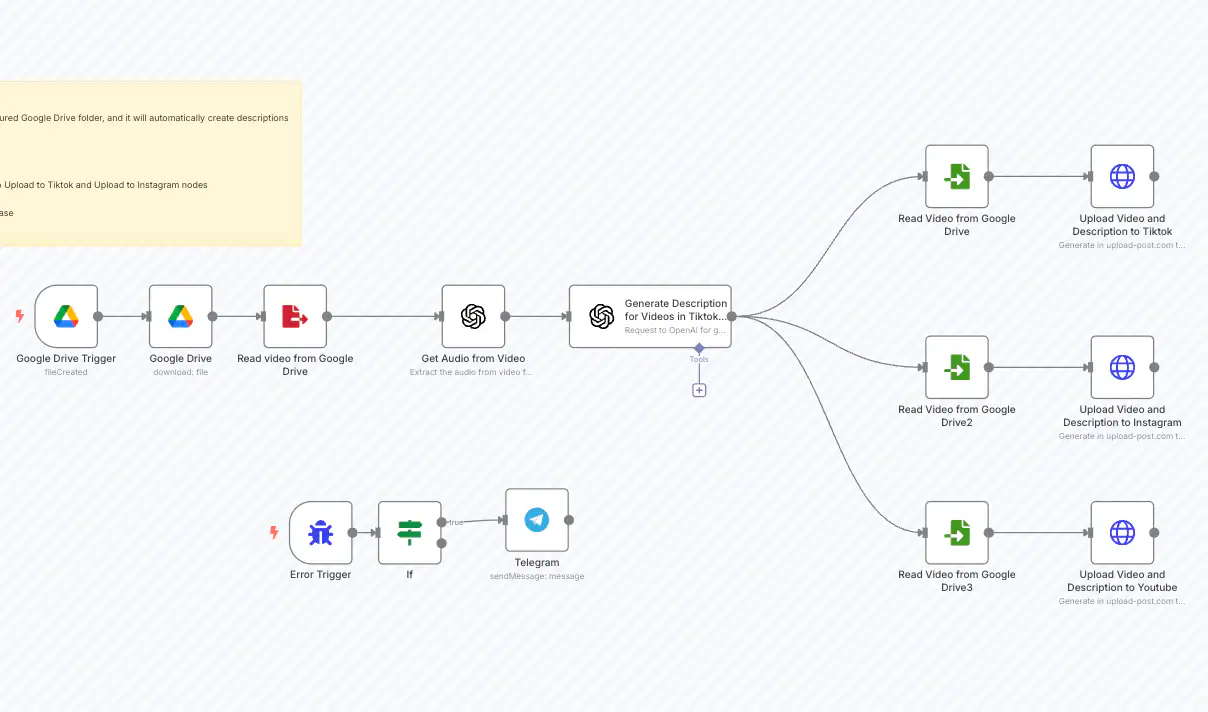
उदाहरण कार्यप्रवाह: AI-संचालित सोशल मीडिया प्रकाशक
What It Does
- नए वीडियो के लिए Google Drive फ़ोल्डर की निगरानी करता है
- OpenAI का उपयोग करके वीडियो को ट्रांसक्राइब करता है
- रोचक सोशल मीडिया विवरण उत्पन्न करता है।
- Instagram, TikTok और YouTube पर अपलोड
- पूर्णता या त्रुटियों पर सूचनाएँ भेजता है
Workflow Architecture
Implementation Steps
- Google Drive ट्रिगर: Configure to monitor a specific folder for new videos
- OpenAI ट्रांसक्रिप्शन: Set up to extract audio and convert to text
- OpenAI विवरण जनरेटर: Use a custom prompt to create engaging descriptions based on transcription
- Upload-Post HTTP अनुरोध: Configure as described in previous steps with multi-platform selection
- त्रुटि प्रबंधन: Add Telegram notification for success/failure alerts
उदाहरण कार्यप्रवाह: Instagram और TikTok के लिए इमेज कैरोसेल प्रकाशक
What It Does
- इंस्टाग्राम पर कई छवियों को कैरोसेल के रूप में अपलोड करना स्वचालित करता है
- टिकटोक पर कई छवियों को स्लाइडशो के रूप में अपलोड करना स्वचालित करता है
- प्लेटफ़ॉर्म के बीच दृश्य सामग्री प्रबंधन को सरल बनाता है
- एकल ट्रिगर के साथ मल्टी-इमेज अपलोड को संभालता है
Workflow Steps
- ट्रिगर: Start the workflow with your selected images (e.g., from a schedule, webhook, or manual execution).
- छवि प्रसंस्करण: The workflow prepares images for platform-specific formats (consider nodes for resizing or formatting if needed).
- Upload-Post HTTP अनुरोध: Configure an HTTP Request node (similar to the video upload) but adjust for image uploads.
- `video` के बजाय `image[]` फ़ील्ड का उपयोग करें।
- प्रत्येक छवि के लिए बाइनरी डेटा को `image[]` फ़ील्ड में पास करें।
- `platform[]` को `instagram` और/या `tiktok` पर सेट करें।
- प्लेटफार्म अनुकूलन: Upload-Post handles formatting according to each platform\'s requirements (carousel for Instagram, slideshow for TikTok).
- (Optional) Notifications: Add nodes to notify upon success or failure.
Refer to the n8n template for specific node configurations, especially for handling multiple image inputs.