
Upload-Post + n8n Integration
Automate your social media publishing by connecting Upload-Post with n8n. Start by setting up your Upload-Post users and API key, then choose between our official n8n node or manual HTTP configuration.
ワークフローの構築に助けが必要ですか? We work with trusted partners who can set up your n8n automation or build a custom project for you.
Prerequisite: Setup in Upload-Post
Before configuring n8n, you must set up users and generate an API key within your Upload-Post account. These will be used to authenticate and direct your automated posts.
ユーザーを管理し、ソーシャルアカウントを接続
Each post is associated with a specific user in Upload-Post. This user must have the target social media platforms connected to their profile.
- Navigate to the ユーザーを管理 page in your Upload-Post dashboard.
- 新しいユーザーを追加するか、既存のユーザーを選択してください。
- 選択したユーザーのために、n8nを介してコンテンツを公開する予定のすべてのソーシャルメディアアカウント(例:TikTok、Instagram、Facebook)を接続します。
- Take note of the ユーザー識別子 (this is typically the username or a unique ID associated with the user in Upload-Post). You will need this for your n8n workflows.
重要: ソーシャルアカウントは、Upload-Postアカウント全般ではなく、自動化で使用する*特定のユーザー*に接続する必要があります。
APIキーを生成
The API key authenticates your requests to the Upload-Post API.
- Go to the APIキー page in your Upload-Post API keys section.
- まだAPIキーを持っていない場合は、新しいAPIキーを生成してください。
- このAPIキーを安全にコピーしてください。n8nの認証設定で使用します。
セキュリティノート: Treat your API key like a password. Do not share it publicly or embed it directly in shared workflows. Use n8n\'s credential management system.
Upload-Postから ユーザー識別子 and APIキー from Upload-Post, you are ready to configure n8n.
Recommended: Using the Official Upload-Post n8n Node
ノードの可用性:
The n8n-nodes-upload-post node is now included by default in updated versions of n8n for both self-hosted (on-premise) n8n instances and n8n cloud instances. No manual installation is required - just ensure you have the latest version of n8n.
The easiest way to integrate is using our official node: n8n-nodes-upload-post. This node is included by default in updated versions of n8n and streamlines setup with dedicated operations for both cloud and self-hosted n8n instances.
1. Access the Upload-Post Node
Upload-Postノードは、n8nの更新版にデフォルトで含まれています:
- 最新のn8nバージョンがインストールされていることを確認してください。
- n8n ワークフローエディタを開きます。
- ノードライブラリで「Upload Post」を検索します。
- ノードは追加のインストールなしで利用可能であるべきです。
If you don\'t see the node, please update your n8n instance to the latest version.
2. Configure Upload-Post API Credentials in n8n
You\'ll use the API Key generated from your 投稿APIセクション (as described in the "Prerequisite" section above).
- In n8n, go to 資格情報 > 新規.
- Search for 投稿APIをアップロード を選択してください。
- Assign a memorable 資格情報名 (e.g., "My Upload-Post API Key").
- Upload PostのAPIキー 指定されたフィールドに入力してください。
- Click 保存.
これは、Upload-Postノードで使用するためにAPIキーを安全に保存します。
3. Utilize Node Operations in Your ワークフロー
The node provides dedicated operations. For each, you will need to provide the ユーザー識別子 (from the user you set up in Upload-Postユーザー管理) to specify which user\'s social accounts to use.
写真をアップロード
1つ以上の写真をアップロードします。ファイルまたはURLを受け付けます。
必須: User Identifier, Platform(s), Photos. オプション: Title, Caption. Platform-specific fields available.
ビデオをアップロード
単一のビデオをアップロードします。ファイルまたはURLを受け付けます。
必須: User Identifier, Platform(s), Video. オプション: Title. Platform-specific fields available.
テキストをアップロード
テキストベースの投稿をアップロードします。
必須: User Identifier, Platform(s), Title/Content. Platform-specific fields available.
Refer to the node\'s help documentation within n8n or the npm package page for detailed parameter lists. The 投稿APIドキュメント provides full details on underlying API capabilities.
Using this dedicated n8n node is the recommended approach for both cloud and self-hosted n8n users.
Manual Configuration (Alternative using HTTP Request Node)
If the official node is not suitable for your specific needs, you can configure the integration manually using n8n\'s generic HTTP Request node. This requires careful setup of API parameters.
前提条件: Upload-PostユーザーとAPIキー
このガイドの最初に記載されている「前提条件: Upload-Postの設定」ステップを完了していることを確認してください。必要なものは:
- Your APIキー from Upload-Post APIキー.
- The ユーザー識別子 (e.g., username) for the user whose social accounts you\'ll be posting to, from Upload-Postユーザー管理.
Upload-Post APIエンドポイントの理解とリクエストの作成
Upload-Post offers distinct API endpoints for uploading different types of content. All requests must include an 認可 header with your API Key and generally require a user field (your User Identifier from Upload-Post) and platform[] to specify the target social media.
1. Video Upload Endpoint
エンドポイント URL: https://api.upload-post.com/api/upload
Use this endpoint for uploading single video files. Key parameters include video (file), title, user, and platform[].
curl \
  -H '認可: Apikey YOUR_API_KEY_HERE' \
  -F 'video=@/path/to/your/video.mp4' \
  -F 'title="あなたの動画タイトル"' \
  -F 'user="YOUR_USER_IDENTIFIER"' \
  -F 'platform[]=tiktok' \
  -X POST https://api.upload-post.com/api/upload
2. Photo Upload Endpoint
エンドポイント URL: https://api.upload-post.com/api/upload_photos
For uploading one or more photos (e.g., for carousels/slideshows). Use photos[] for each image file. Also include user, platform[], title, and optionally description.
curl \
  -H '認可: Apikey YOUR_API_KEY_HERE' \
  -F 'photos[]=@/path/to/your/image1.jpg' \
  -F 'photos[]=@/path/to/your/image2.webp' \
  -F 'user="YOUR_USER_IDENTIFIER"' \
  -F 'platform[]=instagram' \
  -F 'title="My Awesome Photo Album"' \
  -F 'description="Check out these cool photos!"' \
  -X POST https://api.upload-post.com/api/upload_photos
3. Text Upload Endpoint
エンドポイント URL: https://api.upload-post.com/api/upload_text
For publishing text-based posts. Requires user, platform[], and title (as the main content). caption can be used for internal tracking or specific platform needs.
curl \
  -H '認可: Apikey YOUR_API_KEY_HERE' \
  -F 'user="YOUR_USER_IDENTIFIER"' \
  -F 'platform[]=x' \
  -F 'title="This is my amazing tweet content!"' \
  -F 'caption="Optional: A caption for stats & tracking."' \
  -X POST https://api.upload-post.com/api/upload_text
手動設定に関する重要な注意事項:
- Replace
YOUR_API_KEY_HEREwith your actual API key from the Upload-Post Api section. - Replace
YOUR_USER_IDENTIFIERUpload-Postのターゲットソーシャルメディアアカウントが接続されている特定のユーザー識別子(例:ユーザー名)に置き換えてください。 - APIキーはn8nの資格情報マネージャーに保存し、ハードコーディングするのではなく、HTTPリクエストノードで参照することを強くお勧めします。
- The
@/path/to/your/filesyntax in cURL indicates a file upload. In n8n, you would use expressions to reference binary data from previous nodes (e.g.,={{ $binary.data }}).
プロのヒント: Upload-PostダッシュボードからcURLをテストして生成する
Before configuring n8n, test your uploads directly from the Upload-Postダッシュボード. Once you\'ve successfully uploaded content, the dashboard generates a perfect cURL command that you can copy and import directly into your n8n HTTP Request node.
ワークフロー:
- Go to Upload-Postダッシュボード
- コンテンツ(動画、写真、またはテキスト)を希望するプラットフォームにアップロードします。
- アップロードが成功した後、生成されたcURLコマンドをコピーします
- "cURLからインポート"機能を使用して、このcURLを直接n8nのHTTPリクエストノードにインポート
n8n HTTPリクエストノード(ボディ)を設定します。
Key fields for the HTTP Request node\'s body (typically multipart/form-data):
| フィールド | 値 / 説明 | 必須 |
|---|---|---|
| user | Your ユーザー識別子 from Upload-Post (e.g., username). | 必須 |
| platform[] | プラットフォーム識別子(例:tiktok, instagram). Repeat for multiple platforms. | 必須 |
| title | タイトルまたはコンテンツを投稿します(プラットフォームや投稿タイプによって異なります)。 | オプション/異なる |
| video | 動画アップロード用のバイナリファイルデータ。 | 動画をアップロードする場合 |
| image[] | 画像アップロード用のバイナリファイルデータ。カルーセル/スライドショー内の複数の画像に対して繰り返します。 | 画像をアップロードする場合 |
- Set HTTP Request node メソッド to POST.
- Set URL to
https://api.upload-post.com/api/upload. - Add the
認可header with your API key. - For ボディコンテンツタイプ, select
multipart/form-data. - 以下のようなフィールドをボディに追加
user,platform[],title, and eithervideoorimage[]with appropriate values (e.g., using n8n expressions like={{ $binary.data }}for file data).
For detailed examples and platform-specific parameters, refer to the 投稿APIドキュメント.
例: HTTPノードJSON (動画からTikTokへ)
This is a conceptual JSON representation for an n8n HTTP Request node configured to upload a video to TikTok. You would build this using the n8n interface.
{
  "parameters": {
    "method": "POST",
    "url": "https://api.upload-post.com/api/upload",
    "authentication": "headerAuth",
    "sendHeaders": true,
    "headerParameters": {
      "parameters": [
        {
          "name": "認可",
          "value": "APIキー YOUR_API_KEY_HERE"
        }
      ]
    },
    "sendBody": true,
    "bodyContentType": "multipart-form-data",
    "bodyParameters": {
      "parameters": [
        {
          "name": "user",
          "value": "YOUR_UPLOAD_POST_USER_IDENTIFIER"
        },
        {
          "name": "title",
          "value": "= $input.item.title ? $input.item.title : '私の素晴らしい動画'"
        },
        {
          "name": "platform[]",
          "value": "tiktok"
        }
      ]
    },
    "formBinaryData": {
      "video": "={{ $binary.data }}"
    },
    "options": {}
  },
  "name": "TikTokにビデオをアップロード(手動)",
  "type": "n8n-nodes-base.httpRequest"
}
Crucial: API Keys & User Identifiers
- APIキーのセキュリティ: Always use n8n\'s credential management for your Upload-Post API Key. Avoid hardcoding it.
- ユーザー識別子: リクエストボディの
userフィールドが、使用するソーシャルアカウントが接続されているUpload-Postのユーザー識別子を正しく参照していることを確認してください。 - ワークフローを共有する際は、機密の認証データを含まないようにエクスポートしてください。
例: AI駆動のソーシャルメディアパブリッシャー
What It Does
- 新しい動画のためにGoogle Driveフォルダーを監視
- OpenAIを使用して動画を文字起こしします。
- 魅力的なソーシャルメディアの説明を生成
- Instagram、TikTok、YouTubeへのアップロード
- 完了またはエラー時に通知を送信します
Workflow Architecture
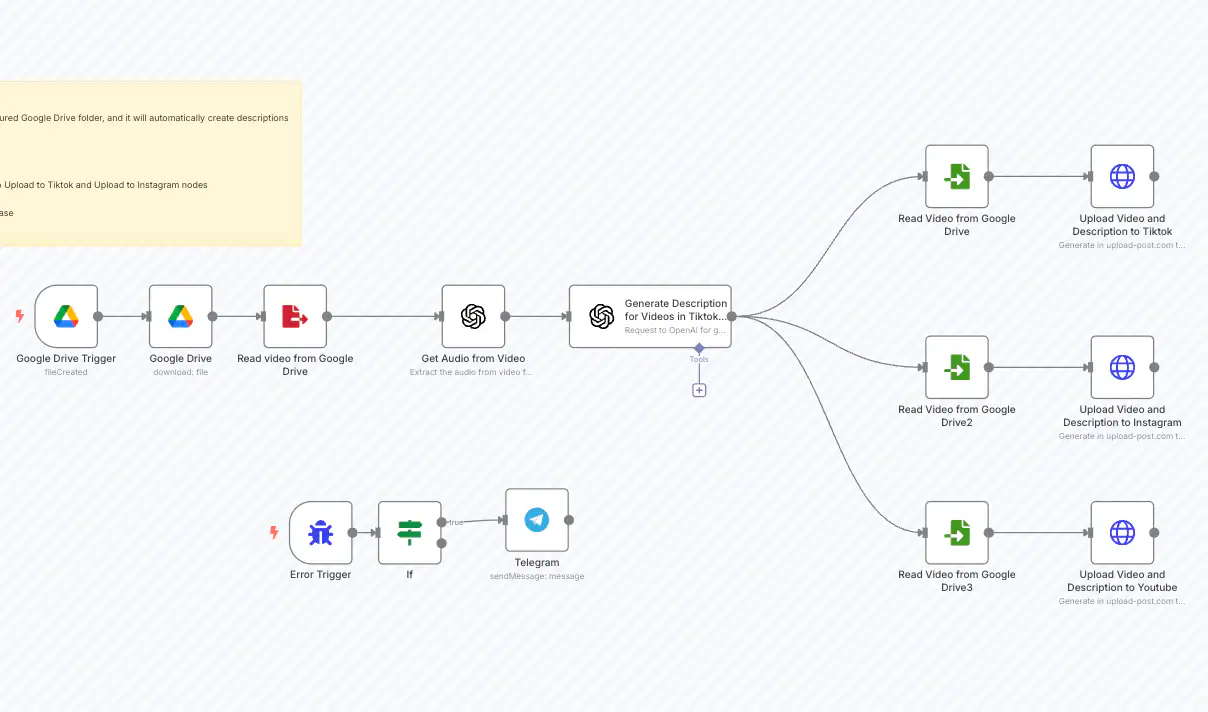
Implementation Steps
- Google Driveトリガー: Configure to monitor a specific folder for new videos
- OpenAI 転写: Set up to extract audio and convert to text
- OpenAI 説明生成器: Use a custom prompt to create engaging descriptions based on transcription
- Upload-Post HTTPリクエスト: Configure as described in previous steps with multi-platform selection
- エラーハンドリング: Add Telegram notification for success/failure alerts
例: Instagram & TikTok用画像カルーセルパブリッシャー
What It Does
- 複数の画像をカルーセルとしてInstagramに自動アップロード
- 複数の画像をスライドショーとしてTikTokに自動アップロード
- プラットフォーム全体でのビジュアルコンテンツ管理を効率化します。
- 単一のトリガーで複数の画像アップロードを処理
Workflow Steps
- トリガー: Start the workflow with your selected images (e.g., from a schedule, webhook, or manual execution).
- 画像処理: The workflow prepares images for platform-specific formats (consider nodes for resizing or formatting if needed).
- Upload-Post HTTPリクエスト: Configure an HTTP Request node (similar to the video upload) but adjust for image uploads.
- `video`の代わりに`image[]`フィールドを使用してください。
- 各画像のバイナリデータを`image[]`フィールドに渡します。
- `platform[]`を`instagram`および/または`tiktok`に設定します。
- プラットフォーム最適化: Upload-Post handles formatting according to each platform\'s requirements (carousel for Instagram, slideshow for TikTok).
- (Optional) Notifications: Add nodes to notify upon success or failure.
Refer to the n8n template for specific node configurations, especially for handling multiple image inputs.