
Upload-Post + n8n Integration
Automate your social media publishing by connecting Upload-Post with n8n. Start by setting up your Upload-Post users and API key, then choose between our official n8n node or manual HTTP configuration.
워크플로우 구축에 도움이 필요하신가요? We work with trusted partners who can set up your n8n automation or build a custom project for you.
Prerequisite: Setup in Upload-Post
Before configuring n8n, you must set up users and generate an API key within your Upload-Post account. These will be used to authenticate and direct your automated posts.
사용자 관리 및 소셜 계정 연결
Each post is associated with a specific user in Upload-Post. This user must have the target social media platforms connected to their profile.
- Navigate to the 사용자 관리 page in your Upload-Post dashboard.
- 새 사용자를 추가하거나 기존 사용자를 선택하세요.
- 선택한 사용자에 대해 콘텐츠를 게시할 모든 소셜 미디어 계정(예: TikTok, Instagram, Facebook)을 n8n을 통해 연결하세요.
- Take note of the 사용자 식별자 (this is typically the username or a unique ID associated with the user in Upload-Post). You will need this for your n8n workflows.
중요: 소셜 계정은 Upload-Post 계정 전체가 아닌, 자동화에 사용할 *특정 사용자*에게 연결되어야 합니다.
API 키 생성
The API key authenticates your requests to the Upload-Post API.
- Go to the API 키 page in your Upload-Post API keys section.
- API 키가 없으면 새 API 키 생성.
- 이 API 키를 안전하게 복사하세요. n8n 자격 증명 설정에서 사용할 것입니다.
보안 노트: Treat your API key like a password. Do not share it publicly or embed it directly in shared workflows. Use n8n\'s credential management system.
Upload-Post에서 사용자 식별자 and API 키 from Upload-Post, you are ready to configure n8n.
Recommended: Using the Official Upload-Post n8n Node
노드 가용성:
The n8n-nodes-upload-post node is now included by default in updated versions of n8n for both self-hosted (on-premise) n8n instances and n8n cloud instances. No manual installation is required - just ensure you have the latest version of n8n.
The easiest way to integrate is using our official node: n8n-nodes-upload-post. This node is included by default in updated versions of n8n and streamlines setup with dedicated operations for both cloud and self-hosted n8n instances.
1. Access the Upload-Post Node
Upload-Post 노드는 n8n의 업데이트된 버전에서 기본적으로 포함되어 있습니다:
- n8n의 최신 버전이 설치되어 있는지 확인하세요.
- n8n 워크플로우 편집기를 엽니다.
- 노드 라이브러리에서 "Upload Post" 검색하기.
- 노드는 추가 설치 없이 사용할 수 있어야 합니다.
If you don\'t see the node, please update your n8n instance to the latest version.
2. Configure Upload-Post API Credentials in n8n
You\'ll use the API Key generated from your 게시물 API 업로드 섹션 (as described in the "Prerequisite" section above).
- In n8n, go to 자격 증명 > 새로 만들기.
- Search for 게시물 API 업로드 를 선택하세요.
- Assign a memorable 자격 증명 이름 (e.g., "My Upload-Post API Key").
- Upload Post의 API 키 지정된 필드에 입력하세요.
- Click 저장.
이것은 Upload-Post 노드에서 사용할 API 키를 안전하게 저장합니다.
3. Utilize Node Operations in Your 워크플로우
The node provides dedicated operations. For each, you will need to provide the 사용자 식별자 (from the user you set up in Upload-Post 사용자 관리) to specify which user\'s social accounts to use.
사진 업로드
하나 이상의 사진을 업로드합니다. 파일 또는 URL을 허용합니다.
필수: User Identifier, Platform(s), Photos. 선택 사항: Title, Caption. Platform-specific fields available.
비디오 업로드
단일 비디오를 업로드합니다. 파일 또는 URL을 허용합니다.
필수: User Identifier, Platform(s), Video. 선택 사항: Title. Platform-specific fields available.
텍스트 업로드
텍스트 기반 게시물 업로드.
필수: User Identifier, Platform(s), Title/Content. Platform-specific fields available.
Refer to the node\'s help documentation within n8n or the npm package page for detailed parameter lists. The 게시물 API 업로드 문서 provides full details on underlying API capabilities.
Using this dedicated n8n node is the recommended approach for both cloud and self-hosted n8n users.
Manual Configuration (Alternative using HTTP Request Node)
If the official node is not suitable for your specific needs, you can configure the integration manually using n8n\'s generic HTTP Request node. This requires careful setup of API parameters.
전제 조건: Upload-Post 사용자 및 API 키
이 가이드의 시작 부분에 설명된 "전제 조건: Upload-Post 설정" 단계를 완료했는지 확인하세요. 다음이 필요합니다:
- Your API 키 from Upload-Post API 키.
- The 사용자 식별자 (e.g., username) for the user whose social accounts you\'ll be posting to, from Upload-Post 사용자 관리.
Upload-Post API 엔드포인트 이해 및 요청하기
Upload-Post offers distinct API endpoints for uploading different types of content. All requests must include an 권한 부여 header with your API Key and generally require a user field (your User Identifier from Upload-Post) and platform[] to specify the target social media.
1. Video Upload Endpoint
엔드포인트 URL: https://api.upload-post.com/api/upload
Use this endpoint for uploading single video files. Key parameters include video (file), title, user, and platform[].
curl \
  -H '권한 부여: API 키 YOUR_API_KEY_HERE' \
  -F 'video=@/path/to/your/video.mp4' \
  -F 'title="귀하의 비디오 제목"' \
  -F 'user="여기에_사용자_식별자_입력"' \
  -F 'platform[]=tiktok' \
  -X POST https://api.upload-post.com/api/upload
2. Photo Upload Endpoint
엔드포인트 URL: https://api.upload-post.com/api/upload_photos
For uploading one or more photos (e.g., for carousels/slideshows). Use photos[] for each image file. Also include user, platform[], title, and optionally description.
curl \
  -H '권한 부여: API 키 YOUR_API_KEY_HERE' \
  -F 'photos[]=@/path/to/your/image1.jpg' \
  -F 'photos[]=@/path/to/your/image2.webp' \
  -F 'user="여기에_사용자_식별자_입력"' \
  -F 'platform[]=instagram' \
  -F 'title="My Awesome Photo Album"' \
  -F 'description="Check out these cool photos!"' \
  -X POST https://api.upload-post.com/api/upload_photos
3. Text Upload Endpoint
엔드포인트 URL: https://api.upload-post.com/api/upload_text
For publishing text-based posts. Requires user, platform[], and title (as the main content). caption can be used for internal tracking or specific platform needs.
curl \
  -H '권한 부여: API 키 YOUR_API_KEY_HERE' \
  -F 'user="여기에_사용자_식별자_입력"' \
  -F 'platform[]=x' \
  -F 'title="This is my amazing tweet content!"' \
  -F 'caption="Optional: A caption for stats & tracking."' \
  -X POST https://api.upload-post.com/api/upload_text
수동 구성에 대한 중요 참고 사항:
- Replace
여기에_API_KEY_입력with your actual API key from the Upload-Post Api section. - Replace
여기에_사용자_식별자_입력대상 소셜 미디어 계정이 연결된 Upload-Post의 특정 사용자 식별자(예: 사용자 이름)로 교체하세요. - API 키를 n8n의 자격 증명 관리자에 저장하고 하드코딩하는 대신 HTTP 요청 노드에서 참조하는 것이 강력히 권장됩니다.
- The
@/path/to/your/filesyntax in cURL indicates a file upload. In n8n, you would use expressions to reference binary data from previous nodes (e.g.,={{ $binary.data }}).
전문 팁: Upload-Post 대시보드에서 cURL 테스트 및 생성
Before configuring n8n, test your uploads directly from the Upload-Post 대시보드. Once you\'ve successfully uploaded content, the dashboard generates a perfect cURL command that you can copy and import directly into your n8n HTTP Request node.
워크플로우:
- Go to Upload-Post 대시보드
- 원하는 플랫폼에 콘텐츠(비디오, 사진 또는 텍스트)를 업로드하세요.
- 업로드가 성공적으로 완료된 후 생성된 cURL 명령을 복사하세요.
- "cURL에서 가져오기" 기능을 사용하여 이 cURL을 n8n HTTP 요청 노드에 직접 가져옵니다.
n8n HTTP 요청 노드(본문)를 구성하세요.
Key fields for the HTTP Request node\'s body (typically multipart/form-data):
| 필드 | 값 / 설명 | 필수 |
|---|---|---|
| user | Your 사용자 식별자 from Upload-Post (e.g., username). | 필수 |
| platform[] | 플랫폼 식별자 (예: tiktok, instagram). Repeat for multiple platforms. | 필수 |
| title | 제목 또는 콘텐츠 게시(플랫폼 및 게시물 유형에 따라 다름). | 선택 사항/다름 |
| video | 비디오 업로드를 위한 이진 파일 데이터. | 비디오 업로드 시 |
| image[] | 이미지 업로드를 위한 이진 파일 데이터. 캐러셀/슬라이드쇼에서 여러 이미지를 반복합니다. | 이미지 업로드 시 |
- Set HTTP Request node 메서드 to POST.
- Set URL to
https://api.upload-post.com/api/upload. - Add the
권한 부여header with your API key. - For 본문 콘텐츠 유형, select
multipart/form-data. - 다음과 같은 필드를 본문에 추가
user,platform[],title, and eithervideoorimage[]with appropriate values (e.g., using n8n expressions like={{ $binary.data }}for file data).
For detailed examples and platform-specific parameters, refer to the 게시물 API 업로드 문서.
예제: HTTP 노드 JSON (비디오를 TikTok으로)
This is a conceptual JSON representation for an n8n HTTP Request node configured to upload a video to TikTok. You would build this using the n8n interface.
{
  "parameters": {
    "method": "POST",
    "url": "https://api.upload-post.com/api/upload",
    "authentication": "headerAuth",
    "sendHeaders": true,
    "headerParameters": {
      "parameters": [
        {
          "name": "권한 부여",
          "value": "API 키 YOUR_API_KEY_HERE"
        }
      ]
    },
    "sendBody": true,
    "bodyContentType": "multipart-form-data",
    "bodyParameters": {
      "parameters": [
        {
          "name": "user",
          "value": "YOUR_UPLOAD_POST_USER_IDENTIFIER"
        },
        {
          "name": "title",
          "value": "= $input.item.title ? $input.item.title : '내 멋진 비디오'"
        },
        {
          "name": "platform[]",
          "value": "tiktok"
        }
      ]
    },
    "formBinaryData": {
      "video": "={{ $binary.data }}"
    },
    "options": {}
  },
  "name": "TikTok에 비디오 업로드 (수동)",
  "type": "n8n-nodes-base.httpRequest"
}
Crucial: API Keys & User Identifiers
- API 키 보안: Always use n8n\'s credential management for your Upload-Post API Key. Avoid hardcoding it.
- 사용자 식별자: 요청 본문의
user필드가 사용할 소셜 계정이 연결된 Upload-Post의 사용자 식별자를 올바르게 참조하는지 확인하세요. - 워크플로를 공유할 때, 민감한 자격 증명 데이터 없이 내보내세요.
예제 워크플로우: AI 기반 소셜 미디어 게시자
What It Does
- 새로운 비디오를 위해 Google Drive 폴더 모니터링
- OpenAI를 사용하여 동영상을 전사합니다.
- 매력적인 소셜 미디어 설명을 생성합니다.
- Instagram, TikTok 및 YouTube에 업로드
- 완료 또는 오류에 대한 알림을 전송합니다.
Workflow Architecture
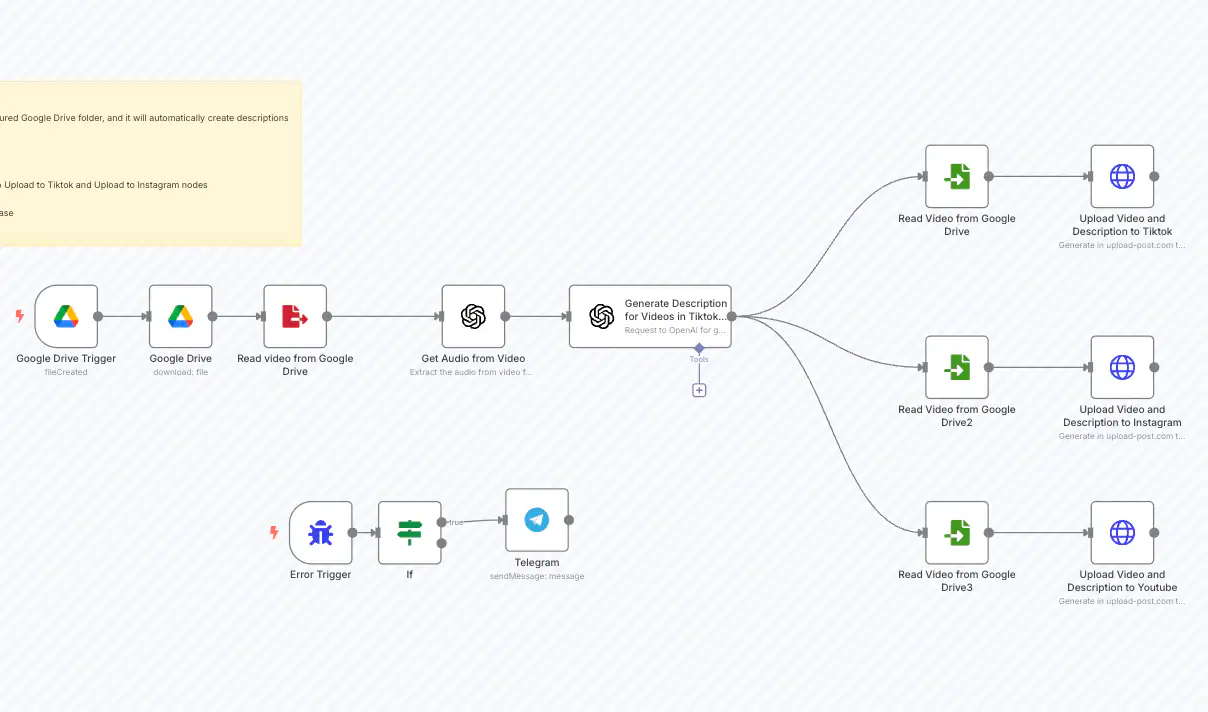
Implementation Steps
- Google Drive 트리거: Configure to monitor a specific folder for new videos
- OpenAI 전사: Set up to extract audio and convert to text
- OpenAI 설명 생성기: Use a custom prompt to create engaging descriptions based on transcription
- Upload-Post HTTP 요청: Configure as described in previous steps with multi-platform selection
- 오류 처리: Add Telegram notification for success/failure alerts
예제 워크플로우: Instagram 및 TikTok용 이미지 캐러셀 게시자
What It Does
- 여러 이미지를 Instagram에 캐러셀로 업로드하는 것을 자동화합니다.
- 여러 이미지를 TikTok에 슬라이드쇼로 업로드하는 것을 자동화합니다.
- 플랫폼 간 시각적 콘텐츠 관리를 간소화합니다.
- 단일 트리거로 다중 이미지 업로드 처리
Workflow Steps
- 트리거: Start the workflow with your selected images (e.g., from a schedule, webhook, or manual execution).
- 이미지 처리: The workflow prepares images for platform-specific formats (consider nodes for resizing or formatting if needed).
- Upload-Post HTTP 요청: Configure an HTTP Request node (similar to the video upload) but adjust for image uploads.
- `video` 대신 `image[]` 필드를 사용하세요.
- 각 이미지에 대한 이진 데이터를 `image[]` 필드로 전달하세요.
- `platform[]`를 `instagram` 및/또는 `tiktok`으로 설정하십시오.
- 플랫폼 최적화: Upload-Post handles formatting according to each platform\'s requirements (carousel for Instagram, slideshow for TikTok).
- (Optional) Notifications: Add nodes to notify upon success or failure.
Refer to the n8n template for specific node configurations, especially for handling multiple image inputs.